20 March 2012

Using Session State in a Web Service

In my web application i have used web services many time. Now i need to pass session variable to the web service method to get data form the database based on the session value. When i am passing session value I got an error. After searching i found the solution to use HttpSession in web methods. It is very simple to resolve this issue i.e enable the session state before using it. This can be done by using following attribute.
[WebMethod(EnableSession=true)] //C#
<WebMethod(EnableSession:=true)] 'VB.net

Example: 
Passing Session value
Session["Value"] = 3; 
Access this session variable (Session["Value"] ) in Add Web Method.
Example:

[WebMethod(Description = "adds x , y and  Value session")]
public int Add(int x, int y)
{
   return (x + y) + (int)Session["Value"] ;
}
This will not work and throws an error. To avoid this needs to enable session state in each web metods.
Example:
[WebMethod(EnableSession = true, Description = "adds x , y and  Value session")]
public int Add(int x, int y)
{
return(x + y) + (int)Session["Value"] ;
}
Once you specify these lines over your web method you can use the session object naturally.

19 March 2012

C# - Error: Could Not Load File Or Assembly 'Microsoft.ReportViewer.WebForms, Version=9.0.0.0

Description: An error occurred during the processing of a configuration file required to service this request. Please review the specific error details below and modify your configuration file appropriately. 

Solution 
This error means you're using the SQL Server Reporting Services/Crystal Reports  ReportViewer control in your web application, and the server can't find the proper DLL. All you have to do is deploy them to your server. With Visual Studio 2008, the location of the ReportViewer DLLs has changed. 
You now find them at C:\Program Files\Microsoft Visual Studio 9.0\ReportViewer.
The first way to get these on your server, and this only works if you run your own server, is to directly copy them into the C:\Windows\assembly folder, and reboot the server (this reloads the GAC). If a reboot is out of the question, you can use GACUTIL.EXE to copy and register the DLLs. 
If you're in a shared hosting environment, reference the DLLs from the VS 9 path listed above, and set the Copy Local=True (select the DLL and open the Properties tab). This will copy the DLLs into your applications BIN folder, and look for them there first. You can then deploy to a shared host, making sure to copy all the contents of BIN.


Dll name 
paste following dll in bin folder or windows folder
1> Microsoft.ReportViewer.Common.dll
2> Microsoft.ReportViewer.ProcessingObjectModel.DLL
3> Microsoft.ReportViewer.WebForms.dll
4> Microsoft.ReportViewer.WinForms.dll

13 March 2012

Windows 7, IIS 7.5 Images, CSS not showing!

Web site having ASP.NET themes. Theme including a CSS file in it, the CSS file was linked in the generated HTML but clearly it was not applied. Putting the URL of the CSS file in the browser address bar would return an empty result in Firefox, and a crappy DOCTYPE,HTML,HEAD,BODY tags in IE. The same website works normally with other developers running Windows XP or Windows 7.
I tried change the website from custom Application Pool to default integrated pipeline one to default classic (IIS 6 like) one, but no use.
Here’s what the problem was:  
While installing IIS 7.5 for the first time, needed to choose  “Static Content” checked as well to display images in the website. 

28 February 2012

This BackgroundWorker states that it doesn't report progress/cancellation. Modify WorkerReportsProgress to state that it does report progress.

Error Type1:  This BackgroundWorker states that it doesn't report progress. Modify WorkerReportsProgress to state that it does report progress.
The error occurs when the WorkerReportsProgress of the background worker is not set to true.

This should be set (to True ) from the properties window as shown below screen.

Error Type 2: This BackgroundWorker states that it doesn't support cancellation. Modify WorkerSupportsCancellation to state that it does support cancellation
The error occurs when the WorkerSupportsCancellation of the background worker is not set to true.
This should be set (to True ) from the properties window as shown below screen.


Using Background Worker in C#

Most of our application that we develop today require simultaneous functions to perform but with performance.  Working with Microsoft .NET framework we have worked with threads through which we can handle all the tasks simultaneously under one main application thread. You can perform smaller operations with the help of Threading class, instead I prefer using Background Worker class to implement to perform all my heavy duty operations.
Background worker class is introduced in .NET framework 2.0 and using this class makes it easy to execute long running operations on a separate thread, support cancellation, progress reporting and marshalling results back to the UI thread.
Now we will see how to use background worker class to perform heavy operations.
My requirement is execute more than one form code simultaneously. Each form, connect to the database and start the execution back end it takes more than one day. Each form will behave same.  To do this i have choose Back Ground Worker.  
I have four buttons to open four forums when i click each one them, a new window will open and then i will start the execution of functionality.
Now let start working with BackgroundWorker.
Create four forms as shown bellow.

First, you need an instance of BackgroundWorker class,Get to the design mode and drag & drop the background worker component on form,  form Component tab of Toolbox as shown bellow screen.
Set the properties of the background worker:
Set GenerateMember and Modifiers as it is. In the sample application we have a progress bar which reports the percentage of the task completed so we need to set the WorkerReportsProgress to true and similarly if we want the user to cancel the running operation then set the WorkerSupportsCancellation to true.

Now the next step is to create 3 event methods:
1.) DoWork: This is the main method which is responsible to handle the large operation. The code here is not different than the usual code.
2.) ProgressChanged: This method reports the change in the progress of the operation performed by the background worker DoWork method.
3.) RunWorkerCompleted:Thismethod checks the RunWorker Completed Event Args and perform action accordingly.
Starting with the Start button:
Next step is to set the event handlers of you object, and finally you have to call RunWorkerAsync() method.  Whenever you call this method it get a free thread from CLR and fires DoWork event. Now you put your codes (The codes that you want to be executed in another thread) in event handler of DoWork event. If the code completed it will raise an event called RunWorkerCompleted to notify you. It 's important to know that this event is not raised on the new thread instead, it will be raised on main thread of your application.

private void btn_start_Click(object sender, EventArgs e)
{
//Starts the backgroundworker process asynchronously
backgroundWorker1.RunWorkerAsync();
btn_start.Enabled = false;
} 
The DoWork method: 
The event args of DoWork event is an object of type DoWorkEventArgs.
In this object you have a property called Argument for getting what you have passed in RunWorkerAsync() method. You can use it in your time-consuming task. 
//Background worker DoWork method. Here we will perform our heavy duty tasks.
//I have used a simple datareader object to traverse all the rows in the table.
//The table has around 19K rows.
private void backgroundWorker1_DoWork(object sender, DoWorkEventArgs e)
{
  try
  {
    int i = 0;
    cmd = new SqlCommand("SELECT * FROM Person.Contact", con);
    con.Open();
    dr = cmd.ExecuteReader();
    while(dr.Read())
    {
        i = i + 1;
        //report to the backgroungworker progreechanged event of the background worker class
        backgroundWorker1.ReportProgress(i);
        Thread.Sleep(1);
        //Called and check if the cancellation of the operation is pending. If returned true
        //DoWorkEventArgs object cancels the operation.
        if (backgroundWorker1.CancellationPending)
        {
            e.Cancel = true;
            return;
        }
    }
   }
   catch (Exception x)
   {
    MessageBox.Show("An error occured while performing operation" + x);
   }
   finally
   {
    con.Close();
   }
}
The RunWorkerCompleted Method:
You may want to have the result of your task in your UI. Again for this purpose you have a property called Result which you can set it in your DoWorkEventArgs. And it will be accessible in your RunWorkerCompletedEventArgs of RunWorkerCompleted event.
private void backgroundWorker1_RunWorkerCompleted(object sender,RunWorkerCompletedEventArgs e)
{
    if (e.Cancelled)
    {
        MessageBox.Show("Operation Cancelled");
        btn_start.Enabled = true;
    }
    else
    {
        MessageBox.Show("Operation Completed");
        btn_start.Enabled = true;
    }
}
The ProgressChanged Method:
private void backgroundWorker1_ProgressChanged(object sender, ProgressChangedEventArgs e)
{
    //Report porogress bar change
    progress.Value = e.ProgressPercentage;
}
Ending up with the cancel button:
//To cancel async operation
private void btn_cancel_Click(object sender, EventArgs e)
{
     //To cancel the asynchronous operation
     backgroundWorker1.CancelAsync();
     progress.Value = 0;
     btn_start.Enabled = true;
}
So when your application is traversing the records and suddenly you think that you should quit the job and work on other part of the application, just hit the cancel button and the large operation will get cancelled without any freezing and hanging of your application.

Reference Links
4) 

24 February 2012

C#: Check if Form is already running

While implementing WinForms programming you might come across a situation where you do not want to open a form multiple times on an event.  A common practice in the event handler function is:
From1 firstForm = new From1();
firstForm.Show(); 
This will open your form, fine! But what if the event happens again and the previously opened firstForm has not been closed yet? A new firstForm will be opened and this will go on.  To check if a form is already running you’ll have to look for it in the Application.OpenForms collection. When a form is opened it is added to that collection. Here’s a boolean method that checks whether a form is open or not. This code snippet shows you how to check if is your MDI container has a specific MDI child open or not. The sample below looks though each of the mdi children in the container for a instance of the form you want to open. If an instance is found, the form is brought to the front. If an instance of the form is not found, the code opens a new instance of the form.

Boolean Method
To check whether the form is already opened or not      
      private bool CheckForm(Form form)
        {
            form = Application.OpenForms[form.Text];
            if (form != null)
                return true;
            else
                return false;
        }
Example use:
                       Form2 formSecond = new Form2();
                        if (!CheckForm(formSecond ))
                        {
                            formSecond .Show();
                        }
                        else
                        {
                            formSecond .WindowState = FormWindowState.Normal;
                            formSecond .BringToFront();
                            formSecond .Activate();
                        }

10 February 2012

Crystal Reports Set Row Height

To increase the row height in Crystal Report designer keep a TextObject in details section and drag your desired field from FieldExplorer onto it. Then, Right-Click TextObject in Details Section then select Format Object form the context menu.

When click on Format Object then it will show Format Editor Window as shown bellow. Enter the values in Minimum number of lines you wand check the Can Grow option. and then click on Ok button.

Crystal Reports - How to Force Page Break On Rows Count

I have a report that I am designing that requires that a new page be generated if rows has more than 8 then second page needs to be generated. To do that follow the steps.
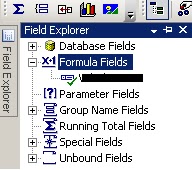
Step 1:  Create a formula to get the rows count for that select field explorer and then expand the formula fields. 

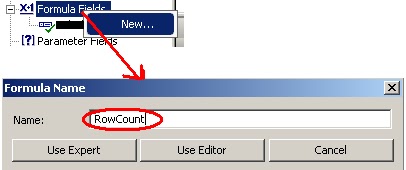
Step 2:  Right click on Forumla Fields and select New to create a formula.  It will show a popup window then enter formula name and "Use Editor" as show bellow.
Step 3:  When click on Use Editor button it will show Formula Editor window.  Here you will write the condition to get rows count as shown bellow. Drag and drop the field.


The Formula Would be:
ToNumber({REP.TotalEmps})

Step 4:  You have created  a formula and use it in the report for page break if rows count increases as per your requirement. Right-click on the Group Header in the Design tab, select "Section Expert" as shown below and then it will show Section Expert window.

 Step 5:  From the section Expert window Select the "New Page After" checkbox and click on the formula edit button then it will show a window to write formula as show bellow and click on save and close.

The formula says that when the employee count greater than 8 then remaining records will be print in the next page. Based on your requirement change the count value.

Crystal Reprts Page breaks (on filed Values changes from one page to another)

You have a date column in crystal report.  When date values changes those details should display in the next page. To get this effect you keep the check mark in the “New Page After” of Group, but you change the “New Page After” for Group Footer Section  to be a condition formula.  To do that Follow the steps
Step 1: Right click on "GroupFooterSection" and select "Section Expert" as shown below.

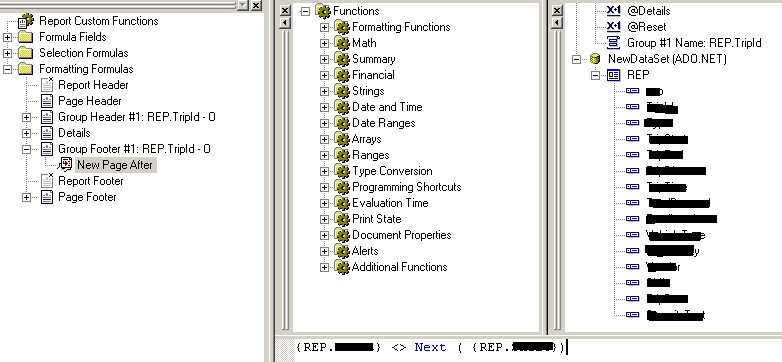
Step 2: When click on Section Expert then it will show sections window check the "New Page After" and click on Formula Editor button then it will show a window to write formula.

Step 3: Then drag and drop the field which and write the condition and then click on Save and Close button.


The formula would be:
{Table.date} = Next ( {Table.date} )

The formula says that when date changes it allowed to do the page break as long as the report date differ form one page to another.

06 February 2012

Chart Elements Overview

A chart consists of numerous elements, all of which are accessible via the Chart control API. The Chart control API is object-oriented, extensible and highly flexible. It also supports an unlimited number of key chart elements such as data series, data points in a series, chart areas, and so on.
The following figure illustrates the key elements that constitute a chart:
Description of Chart Elements
The following lists describes the major chart components:  

Axis Label
A label along an axis.  

Axis Title
The title of an axis.

Chart Area
The chart picture consists of one or more chart areas, which are rectangular areas that are used to draw series, labels, axes, grid lines, tick marks, and so on. Multiple series can be plotted in one chart area, depending on the chart types involved.
The plot area, used to plot chart data, is also contained within a chart area.

Chart Picture
The chart picture, is the entire image surface that is rendered by the Chart control. It corresponds to the root Chart object.  

Chart Series
A series is a related group of data points. Each series is associated with a chart type.

Legend
A legend for the Chart picture. There can be an unlimited number of legends in a chart.

Grid Lines
There are major and minor horizontal and vertical grid lines, which usually occur in conjunction with tick marks.

Tick Marks
There are major and minor horizontal and vertical tick marks, which usually occur in conjunction with grid lines.

Plot Area
The plot area is the inner rectangular area within a chart area that is used to plot series and grid lines. Labels, tick marks, the axis title, and so on, are all drawn outside of the plotting area and inside the chart area. The plot area can be set via the ChartArea.InnerPlotPosition property.

Title
A main chart title. There can be an unlimited number of titles placed in a chart image. Note that custom text can be displayed using GDI+ and the paint-related events.

Value Label
A special label that occurs for a data point, slightly offset from where the point is plotted. It can be the data point's value or custom text.