Showing posts with label Crystal Reports. Show all posts

05 May 2012

Using MID() to Cut Out a SubString

I have a filed that begins with numeirc characters and it ends with alpha character (like 0125461E). I want to alpha (E) part form the string and leave the remaining (0125461) field value.

we need to "cut" it out of our  IDNumber field.
Our example field is called {USERS. IDNumber}.
Now the way we cut strings out of other strings is with the MID() function. The MID function takes three parameters. The string on which to operate, where to start and the length of the string to return.

MID(String, Starting Character Position, Length of String to Return)

Supposing that {USERS. IDNumber } is going to return Justin Hill, we can see the result of various MID statements:
MID({USERS. IDNumber }, 8, 1) then we will get "E"
Also note that you may omit the final parameter (length) to return "the rest" of the string, like this:
MID({USERS. IDNumber  }, 8) 

Example:

//Declaring variable to display message...
Stringvar message;
if (MID({REP. IDNumber},  8 ,1)="E")
then message:="Employee" 

Pass value from main report to sub report

I am designing a report which includes sub report every thing is fine but i have to display the main report field value in sub report . To get the main report vale in to the sub report follow the bellow steps.
Step 1:
1. In main report create a formula, name it, edit it with the formula editor as follows:
Shared numbervar NAME := {Rep.Sno} 
Save formula.  Note that you should replace the name and type of variable and a formula with ones of your own
2. Now create a formula in your subreport, name it, edit it with the formula editor as follows:

Shared numbervar NAME;
NAME
3. Use formula created in step 2 in your report (drag drop in the report from formula fields.
Note that subreport is processed after the main report, so it's easier to pass values from main report to subreport.

31 March 2012

Convert String to Number in Crystal Reports

Use a Crystal formula to convert string field to Number by using the ToNumber function.
Example: 
ToNumber({Table.Column})


To convert any Numeric field to Text by using the ToText function.
Example:
ToText({Table.Column})
This will allow you to use String functions (i.e. Mid, Left, etc) on any Numeric field.

Hide fields in Crystal Report

To hide any formula value or field values.  Select field and right click on it then context menu displays select Format Editor as shown below screen shots.
Step 1:
Step 2:

10 February 2012

Crystal Reports Set Row Height

To increase the row height in Crystal Report designer keep a TextObject in details section and drag your desired field from FieldExplorer onto it. Then, Right-Click TextObject in Details Section then select Format Object form the context menu.

When click on Format Object then it will show Format Editor Window as shown bellow. Enter the values in Minimum number of lines you wand check the Can Grow option. and then click on Ok button.

Crystal Reports - How to Force Page Break On Rows Count

I have a report that I am designing that requires that a new page be generated if rows has more than 8 then second page needs to be generated. To do that follow the steps.
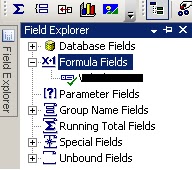
Step 1:  Create a formula to get the rows count for that select field explorer and then expand the formula fields. 

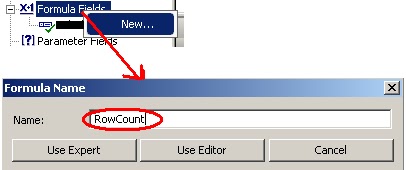
Step 2:  Right click on Forumla Fields and select New to create a formula.  It will show a popup window then enter formula name and "Use Editor" as show bellow.
Step 3:  When click on Use Editor button it will show Formula Editor window.  Here you will write the condition to get rows count as shown bellow. Drag and drop the field.


The Formula Would be:
ToNumber({REP.TotalEmps})

Step 4:  You have created  a formula and use it in the report for page break if rows count increases as per your requirement. Right-click on the Group Header in the Design tab, select "Section Expert" as shown below and then it will show Section Expert window.

 Step 5:  From the section Expert window Select the "New Page After" checkbox and click on the formula edit button then it will show a window to write formula as show bellow and click on save and close.

The formula says that when the employee count greater than 8 then remaining records will be print in the next page. Based on your requirement change the count value.

Crystal Reprts Page breaks (on filed Values changes from one page to another)

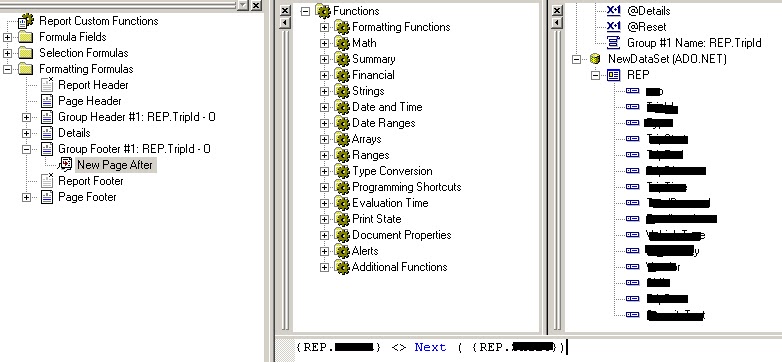
You have a date column in crystal report.  When date values changes those details should display in the next page. To get this effect you keep the check mark in the “New Page After” of Group, but you change the “New Page After” for Group Footer Section  to be a condition formula.  To do that Follow the steps
Step 1: Right click on "GroupFooterSection" and select "Section Expert" as shown below.

Step 2: When click on Section Expert then it will show sections window check the "New Page After" and click on Formula Editor button then it will show a window to write formula.

Step 3: Then drag and drop the field which and write the condition and then click on Save and Close button.


The formula would be:
{Table.date} = Next ( {Table.date} )

The formula says that when date changes it allowed to do the page break as long as the report date differ form one page to another.

07 March 2011

Error in File UNKNOWN.RPT: The request could not be submitted for background processing

I have a web application that uses Crystal Reports. It is working fine in one of our test server (Windows 2003). When we migrate this asp.net web apps to the production server, my Report Generate button that uses Crystal Reports did not work and got this following error.  The request could not be submitted for background processing".


Solution:-
I took the below steps to correct it:
  1. Right Click on C Drive
  2. Click on Security Tab
  3. Add "Network Services" to the list of users. Caution: Remember to remove it later.
  4. Browse to you application and crystal report should work now.
  5. Go back to your server and Remove the "Network Service" user from the security list. 
Hope this fixes the issue for all.

31 January 2011

Crystal Report icons/toolbar not working when deployed on web server

I have built a web page which contains a Crystal Report built using the Crystal libraries included in Visual Studio 2008.

It 'works on my machine' but when deployed to the web server the icons (Export, Print etc) on the Crystal Report toolbar do not display or work. Just seeing the 'red X' where the button image should be and clicking does nothing.

I have checked that the toolbar images are actually in the location being looked at on the web server: (C:/Inetpub/wwwroot/aspnet_client/system_web/2_0_50727/CrystalReportWebFormViewer4/images/toolbar/)
They are all there and I have checked the permissions on the above mentioned folder on the web server. Gave 'full control' to every user just to test it.


I have also intalled/run the 'CRRedist2008_x86.msi' on the web server

Here the fix:
On the web server, copy the 'aspnet_client' folder from 'C:\Inetpub\wwwroot' to 'C:\Inetpub\wwwroot\your-website-name'.
 

18 January 2011

Crystal Report .NET and 64-bit application

Information specific to users with a 64-Bit development machine. 

Crystal Reports for Visual Studio projects can be built on a 32-bit or a 64-bit machine. In addition, the projects' code can be ported to and updated on a 64-bit machine. Itanium (IA64) processors are supported for run-time only.
On a 64-bit machine, the 32-bit Crystal Reports Basic for Visual Studio 2008 IDE will run under WOW64 (the x86 emulator that runs 32-bit applications on a 64-bit machine). 

Before you can run an application on a 64-bit machine you must install the Crystal Reports 64 bit runtime for your 64-bit environment. If you have installed Visual Studio into the default installation directory, the configuration application can be found in the below directory.
Note
For Crystal Reports Basic for Visual Studio 2008, the redist files will be installed to the location of the .Net 3.5 SDK on your local machine. This location may change depending upon your system setup.

Crystal Reports for Visual Studio 2008 requires a "runtime" to load reports on a client machine.  This "runtime" can be found in this location on the development machine.

"C:\Program Files\Microsoft SDKs\Windows\v6.0A\Bootstrapper\Packages\CrystalReports10_5"

"CRRedist2008_x86.msi" (for 32bit)
"CRRedist2008_x64.msi" (for 64bit)

Running this install package will install the files necessary to run open forms using Crystal Reports for Visual Studio 2008 (version 10.5 in the IDE).  This is NOT the required "Runtime" for Crystal Reports 2008 (which is version 12).

Access to report file denied. Another program may be using it.

From your setup, Crystal will always create the their temp files in your C:\Windows\Temp directory.  In iis 5 the aspnet_wp needs access to this folder.  In iis 6 it is the IIS_WPG account that needs access to this folder.  I believe it needs, read, write and modify permissions, shouldn't need execute. 

ASP.NET 3.5 had this error.   

Error in File C:\DOCUME~1\FFUK\ASPNET\LOCALS~1\Temp\temp_9ff883f0-88e3-469c-a942-092ca424001a.rpt: Access to report file denied. Another program may be using it.

crReportDocument.Load(Server.MapPath("Project.rpt")); 

It is enough to give read, write permission to NETWORK SERVICE user. crystal report create a temp file with guid for name in windows temp folder, so it needs write permission to the disk to make create that temp file.  

Step:1

To come out from this problem give Read/Write Access to C:\Windows\Temp folder in Production server In windows server 2008(64bit), ASP.NET 3.5 development machine, no files are created when we run crystal reports from aspx pages. 

Step:2 

remove the line below from your web.config file

<identity impersonate="true"/>